Beginner Guide
First loop in My Small Business (Future CEOs): create your brand, match order themes, ship a Perfect fit box, then buy Order Clipboard and Bookmark Cardstock.
First shipment steps
Create your brand, save one sticker per theme you see on Orders, print and cut, print a shipping label, Start an order, Perfect fit pack for +10% tip, then buy Order Clipboard ($15) and Bookmark Cardstock ($30).
Create your brand. Pick a business name, main and accent colors, and a logo. Press Create My Brand. Naming the shop clears the first quest and shows your brand next to the level bar.
Design by theme. Open Designs, choose Sticker, pick a theme (Sweets, Sky, Love, Flowers, Animals, Fantasy, Ocean, or Nature), then Save. Customers care about the theme, not how fancy the art is. First save awards First Masterpiece.
Stamps and a flat fill are enough. Name files clearly (Ocean Sticker 1) so the printer list stays easy to read.
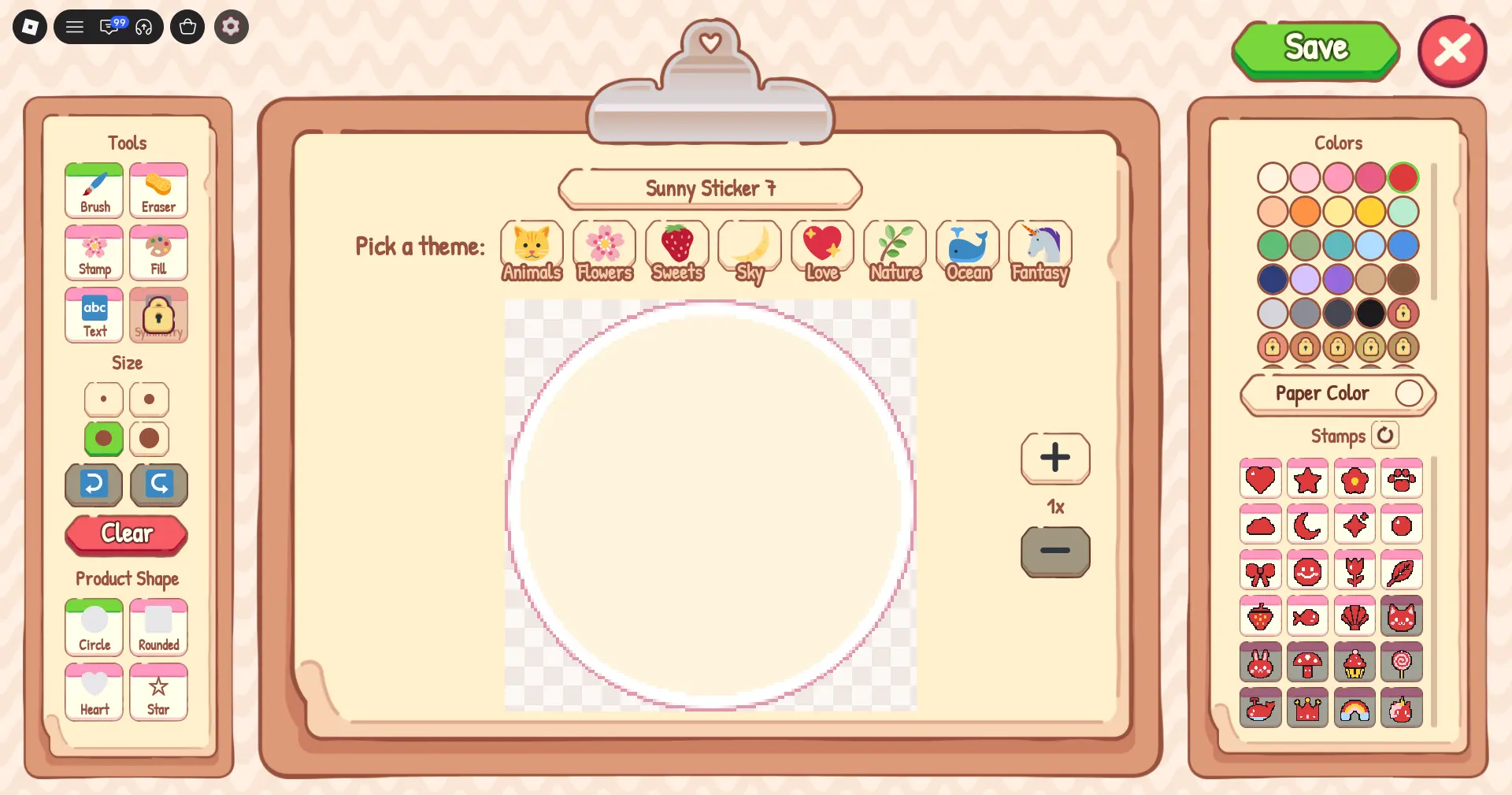
Bloxron in-game screenshot. Save at least one sticker per theme you see on Orders. You can redraw later. Theme match is what fills the order. The eight themes and unlock ladder are listed under Products.
Print, cut, stock. At the printer pick the design and count, press Print, then Print & cut on the mat and peel the pieces. Put finished items on the shelf.
Check Orders before you print so you do not fill the shelf with unused themes. Big Paper Tray adds three pieces per batch later.
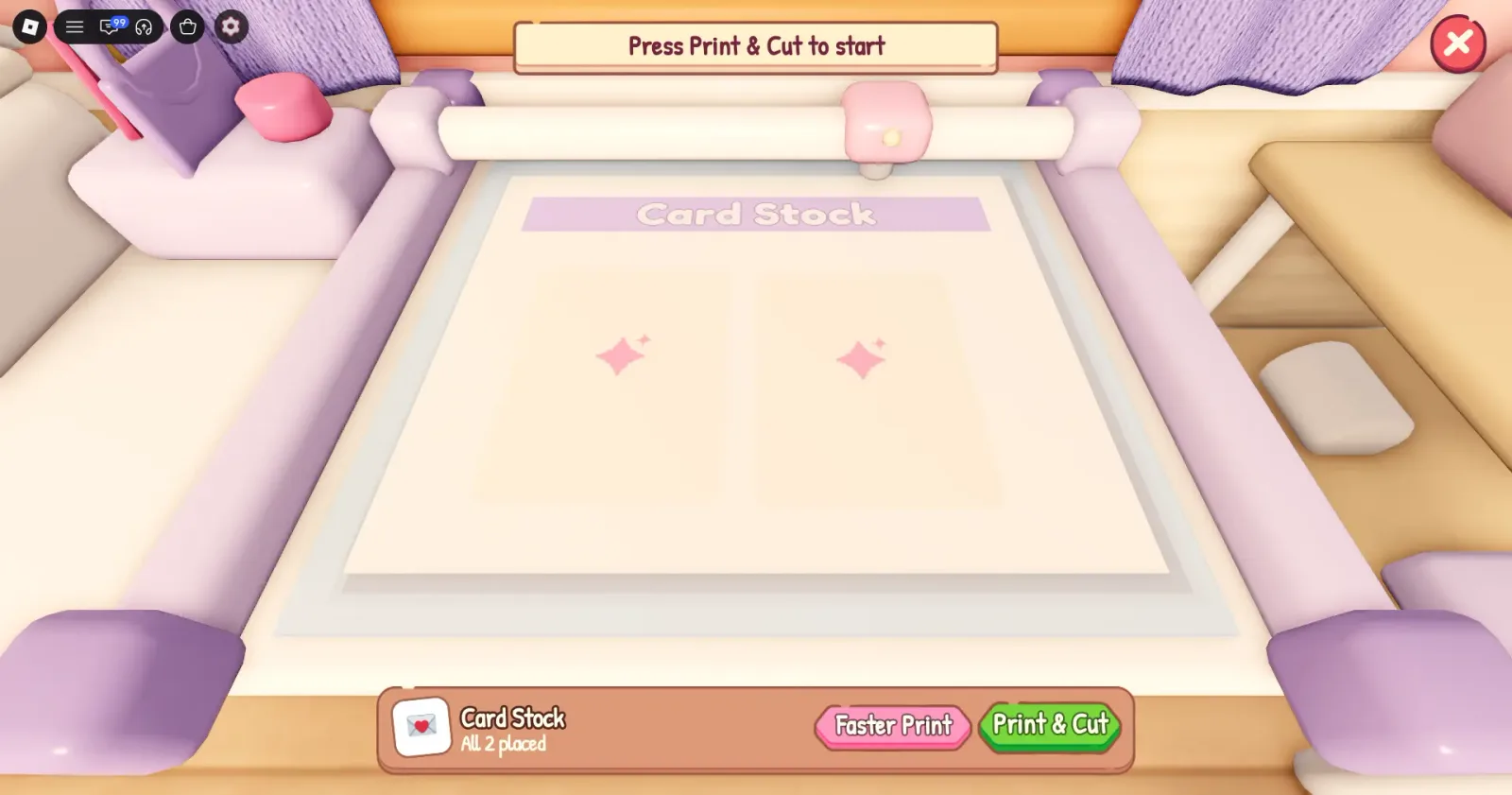
Bloxron in-game screenshot. Peel finished pieces off the mat and stock the matching shelf slot. Peel All peels for you once you buy that Expand upgrade.
Labels then Start. Print shipping labels at the Label Printer (drag a label off to tear it). Open Orders from the left menu so new customers can show up.
Orders show a theme product and a pay line like $18 + Tips. Stock that theme before you Start. A wrong Start wastes the slot and the print cost.
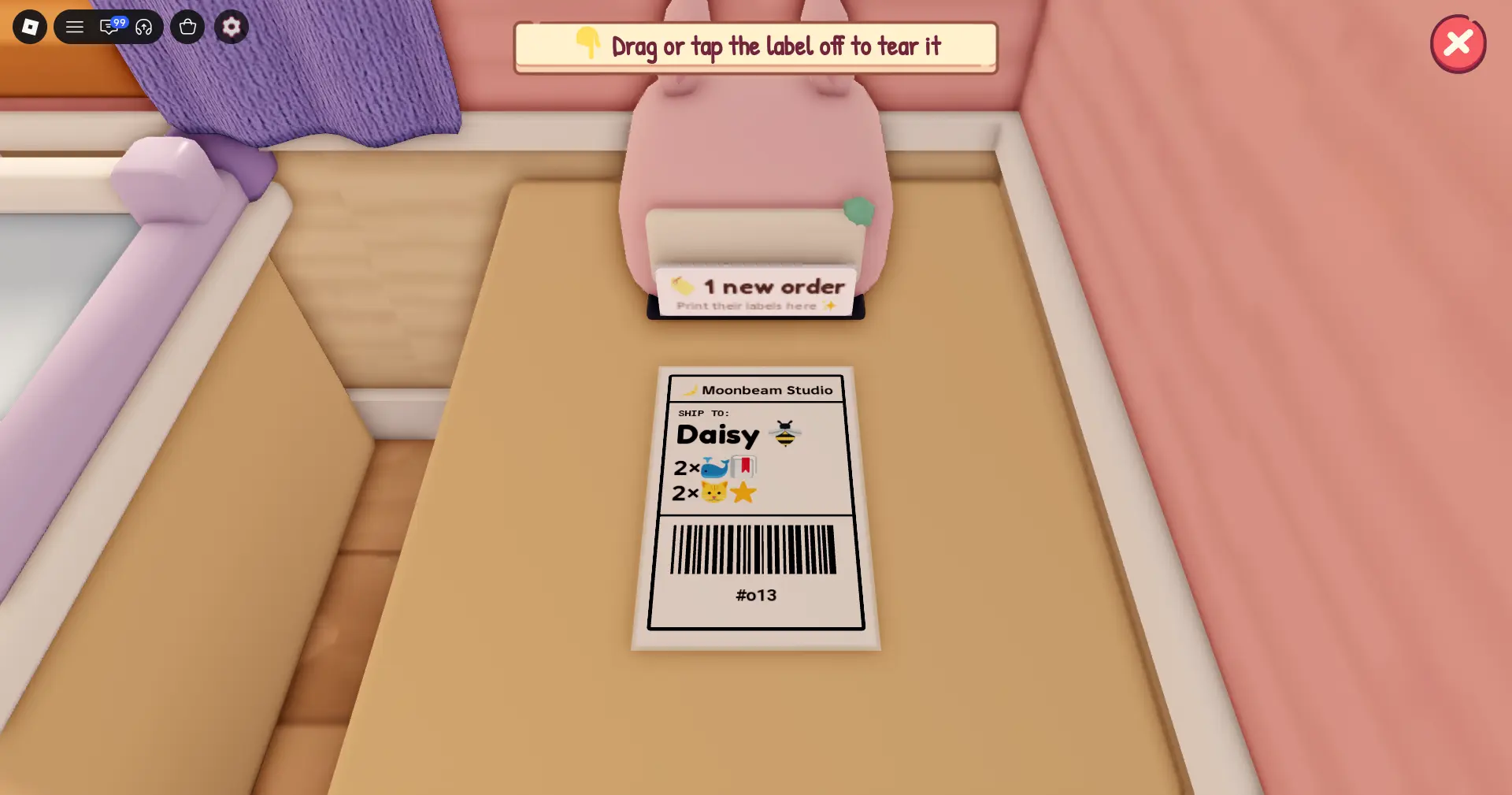
Bloxron in-game screenshot. When orders are on the board, read each card: star rating and active slots at the top (for example 2/3), then customer name, theme, and pay.
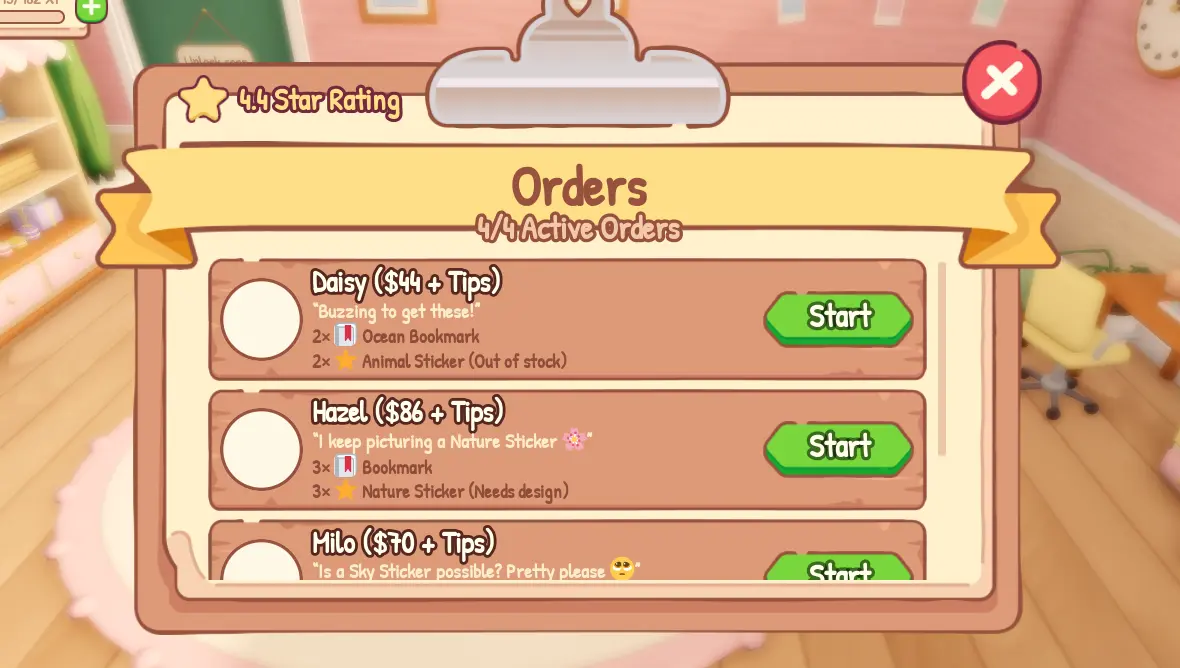
Bloxron in-game screenshot. Pick the order you can fill and press Start. Take those theme pieces from the shelf (any design in that theme counts) and bring them to the packing table with labels nearby. Clipboard and Cork Order Board raise how many orders you can hold.
Pack for Perfect fit. Drag the smallest box that still fits every item for Perfect fit +10% tip. Box Organizer ($35) shows the right size. Add goodies (Freebie +10%, Thank-You / Tissue +8%, Seal +6%, Plushie +25% with the pass), then press Done.
Save the strongest goodies for high pay orders. Stock stays limited until Goodies Shelf or a Goodie Pack.
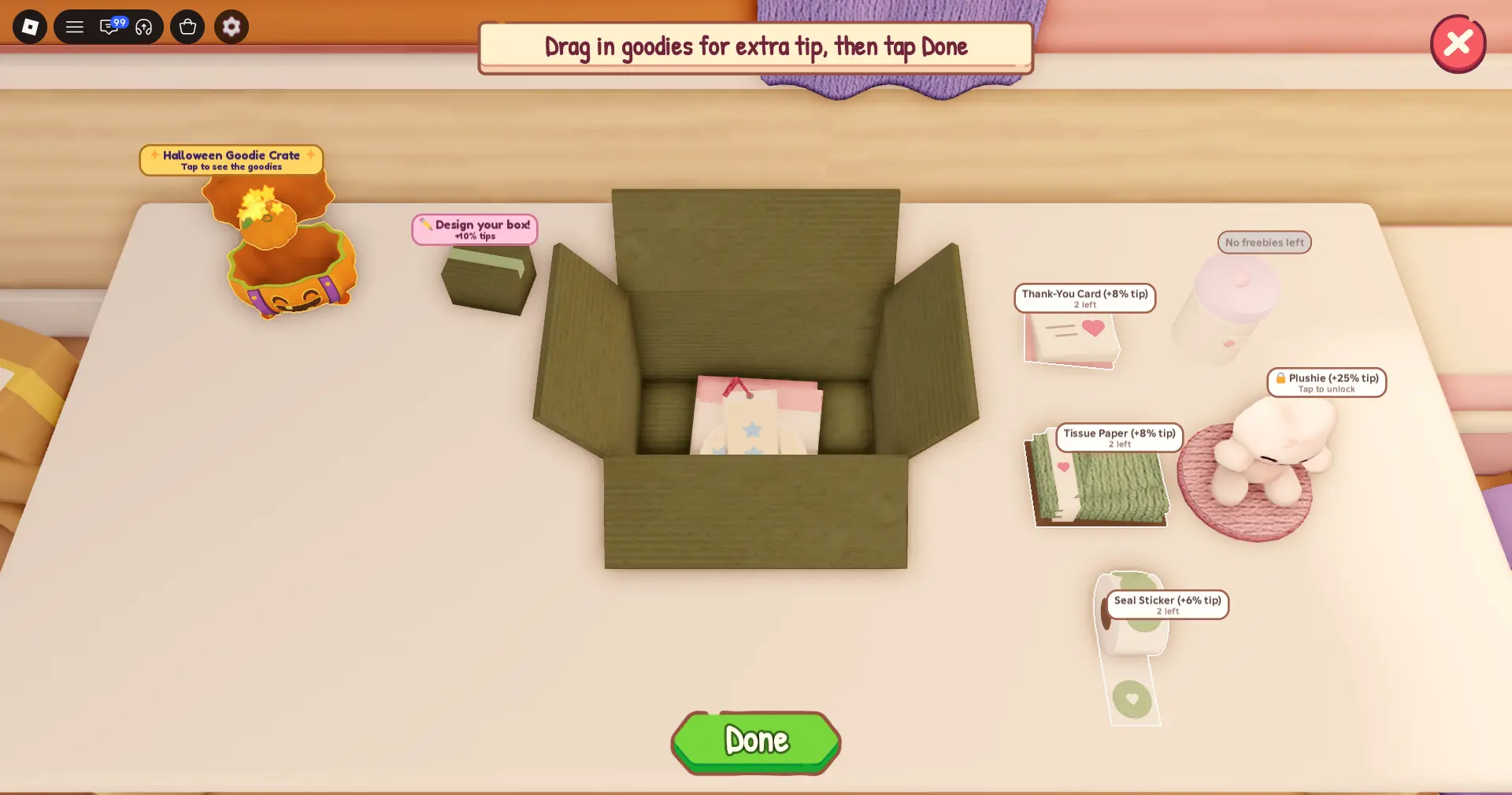
Bloxron in-game screenshot. Fold the flaps, drag the tape gun along the edge, finish with a ribbon (Ribbon Spool) or the shipping label, and Ship. First ship awards First Delivery.
Spend first coins. Open Expand. Buy Order Clipboard ($15) to hold more orders, then Bookmark Cardstock ($30). Making your first bookmark starts bookmark orders. Add Box Organizer and Big Paper Tray when you can. Later unlock levels are on Products. The full buy order is on Upgrades.
Tips that stick
Stack tip goodies on large pay orders (Freebie +10%, Plushie +25% with the pass), clear quests and use Collab, learn the left HUD, and watch level gates for Greeting Card (5) through Art Print (17).
- Save strong goodies. Tips are percentages. Freebie +10%, Thank-You Card +8%, Tissue +8%, Seal Sticker +6%, Plushie +25% (pass). Stack several in one box, but keep the best ones for big pay orders. Restock with Goodies Shelf ($105) or a Goodie Pack (R$49). Seasonal crates show up under Events.
- Quests and Collab. Clear every quest for extra Coins and XP (Name your shop, Ship 3 orders, Buy an upgrade, Ship 20 orders). Invite friends with Collab so one person prints while another packs. Friend Boost rises when friends share the server.
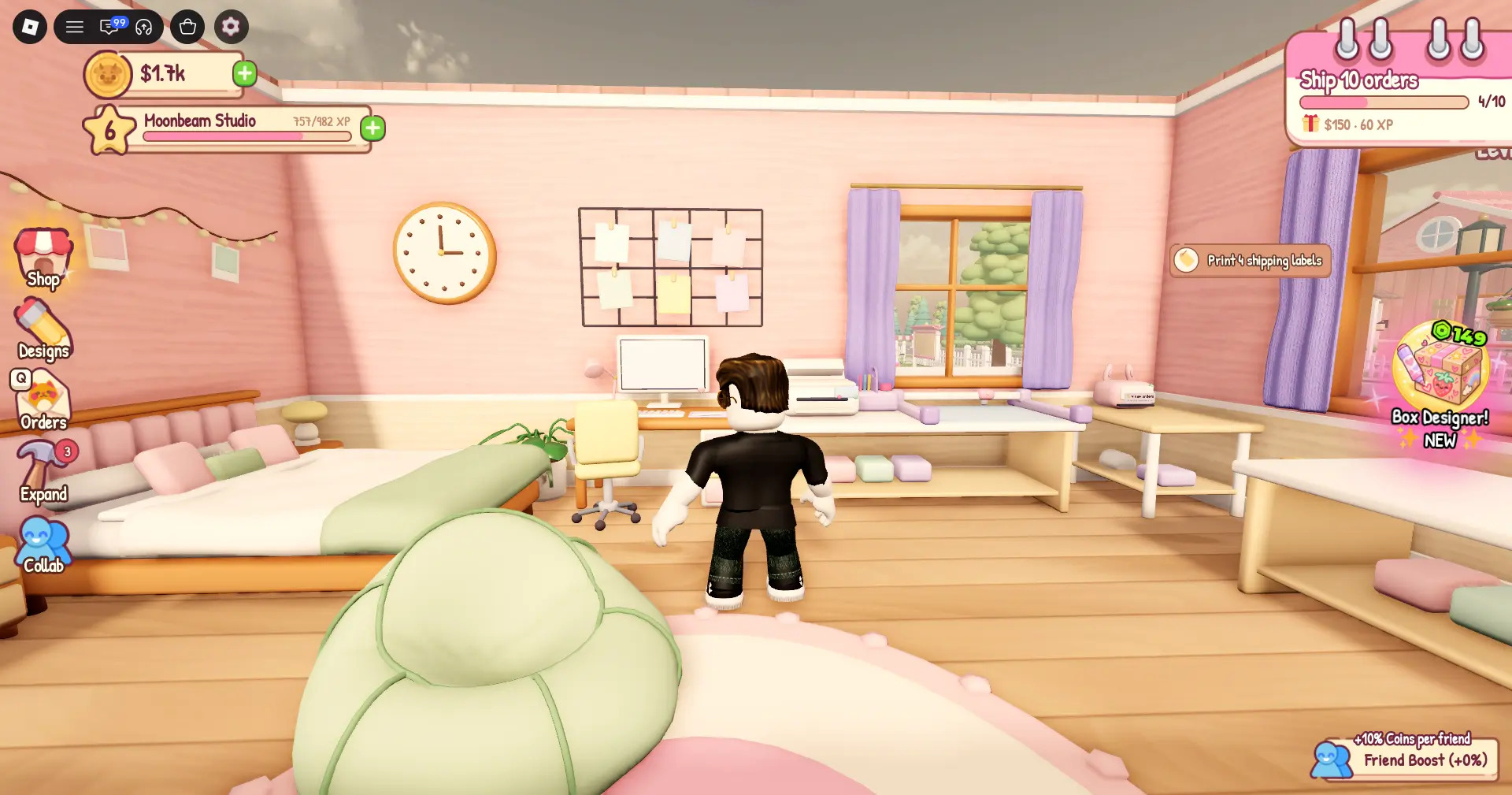
- HUD map. Left: Shop, Designs, Orders, Expand, Collab. Bottom left: Coins, brand, level XP. Top right: active quest. Right: Starter Pack timer and Friend Boost %. Orders also shows your star rating and active slots (for example 2/3).
- Level gates. Level 2 unlocks more Expand buys. Greeting Card is level 5, Acrylic Charm level 8, Luggage Tag 13, Art Print 17. Unlocking Craft Studio awards Moving Out. Expand buys: Upgrades. Product unlocks: Products.
Common mistakes
Printing unordered themes, skipping Perfect fit with oversized boxes, burning strong goodies on tiny orders, buying Cardstock then never crafting a bookmark, and sitting on coins instead of Clipboard and Tray.
- Printing themes nobody ordered wastes print cost and shelf space.
- Using a large box when a smaller one fits skips the Perfect fit tip.
- Burning Plushie or Freebie stock on tiny orders.
- Buying Bookmark Cardstock then never printing a bookmark (bookmark orders start after the first craft).
- Sitting on coins instead of Clipboard, Tray, and tip upgrades.
FAQ
- What should I do first?
- Create your brand, save one sticker, print and stock it, print a label, Start an order, Perfect fit pack, then buy Order Clipboard.
- Do I need Robux to progress?
- No. Passes speed printing and tips, but quests, Expand upgrades, and Perfect fit packs work on a free account.
- When do bookmark orders appear?
- After you buy Bookmark Cardstock and craft your first bookmark. Until then keep fulfilling sticker themes.